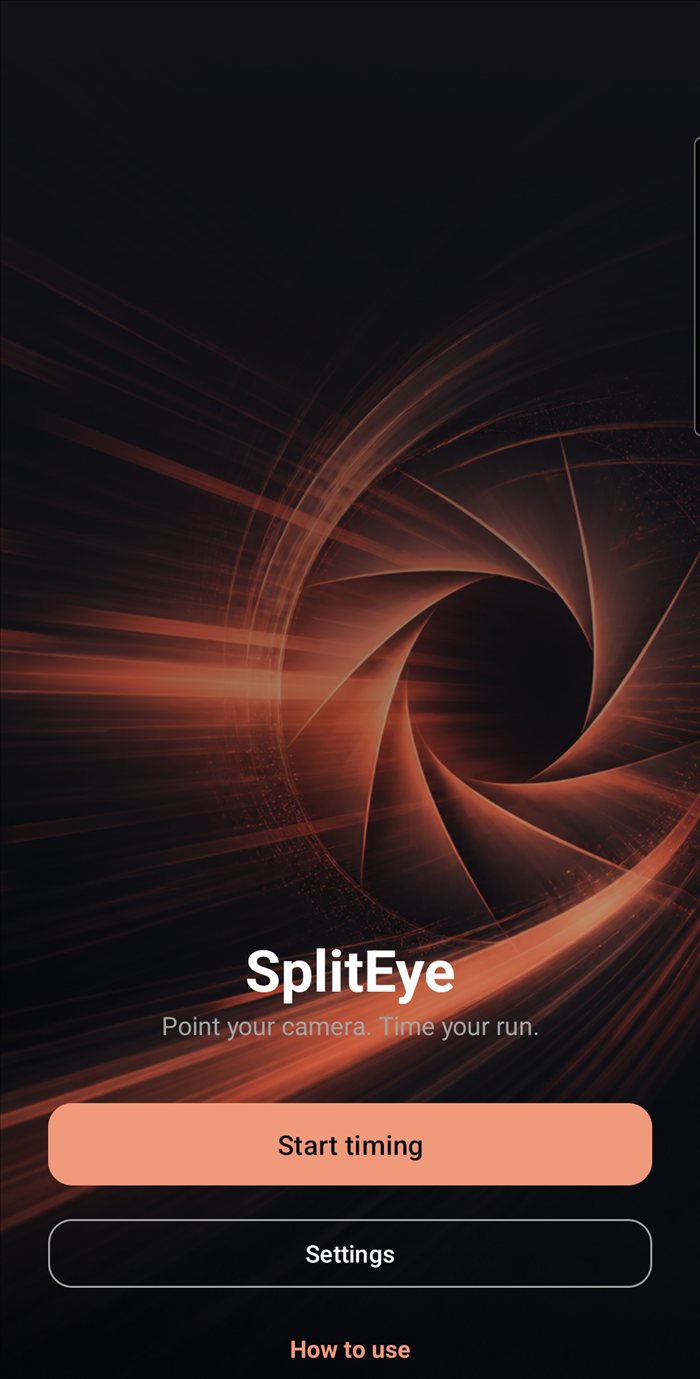
 SplitEye
Camera-based run timer
Point your camera.
Time your run.
SplitEye watches a small colour marker through your phone's camera and starts or stops the clock the moment it's covered. No timing gates, no extra hardware — just your phone.
Features
Everything a stopwatch can't do
SplitEye replaces a stopwatch and a pair of eyes on the line with a camera watching one small spot — and it remembers what a stopwatch never could.
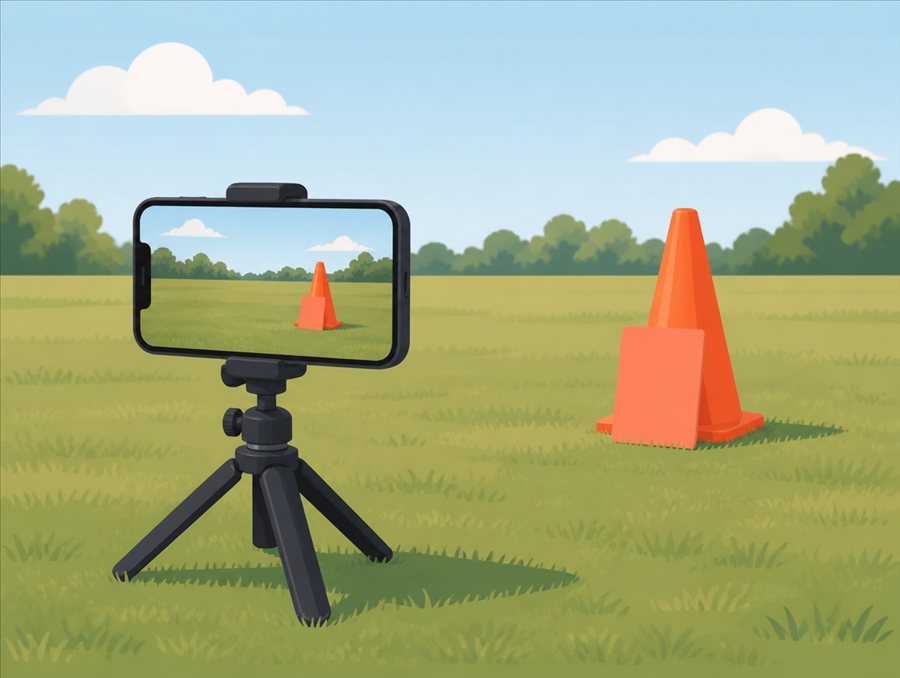
No extra hardware
A cone, a bit of coloured card — anything that stands out from the background works as a marker. Point your camera at it and you're ready.
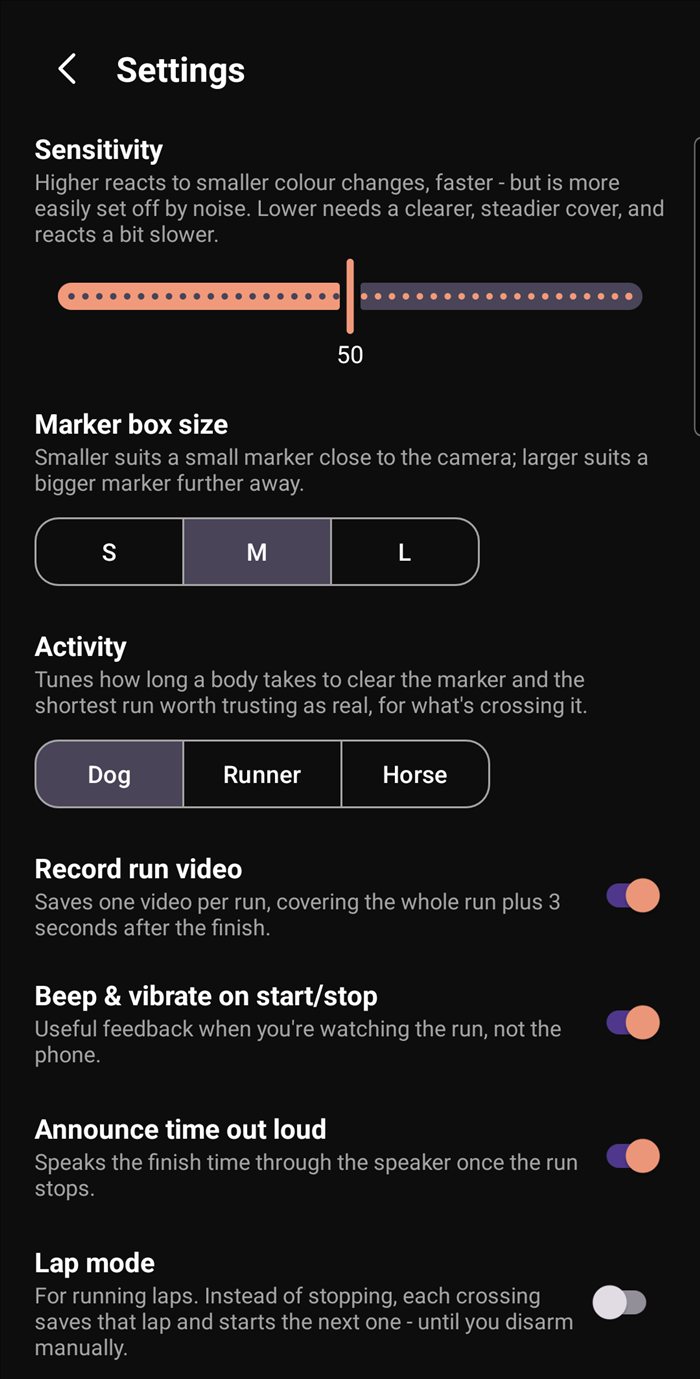
Tuned to your sport
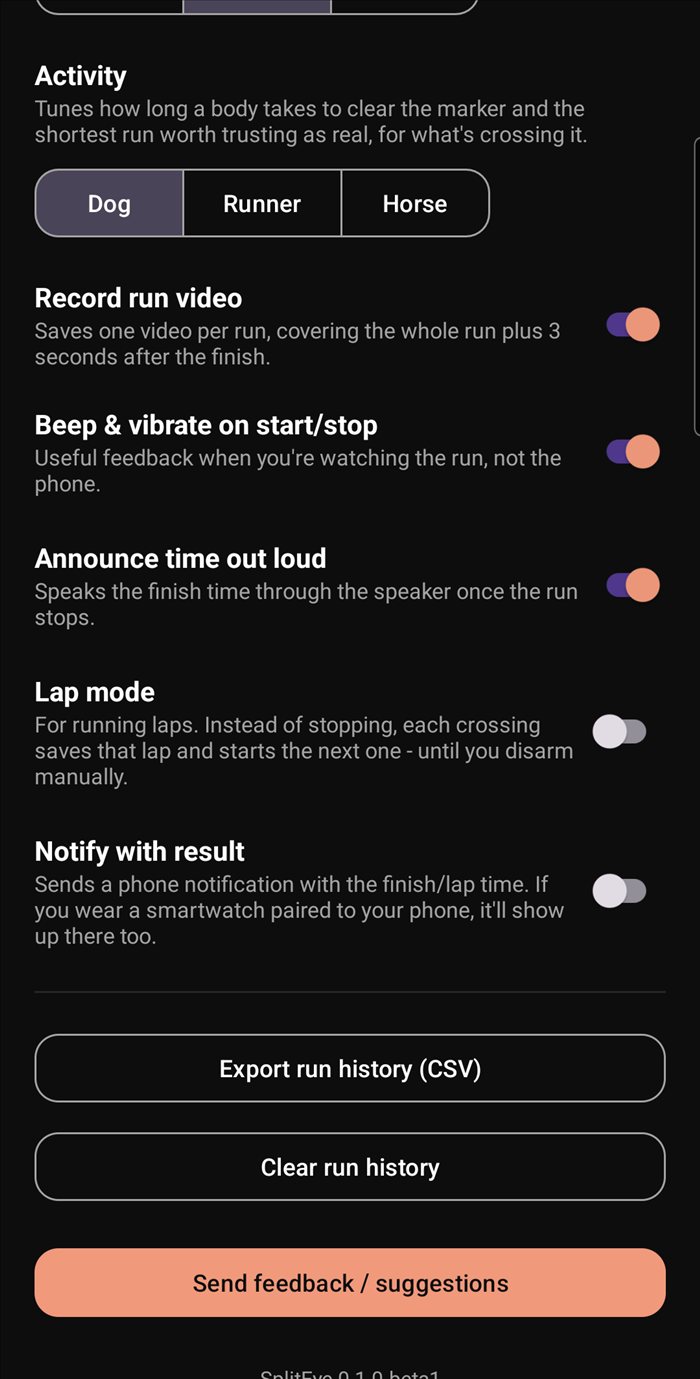
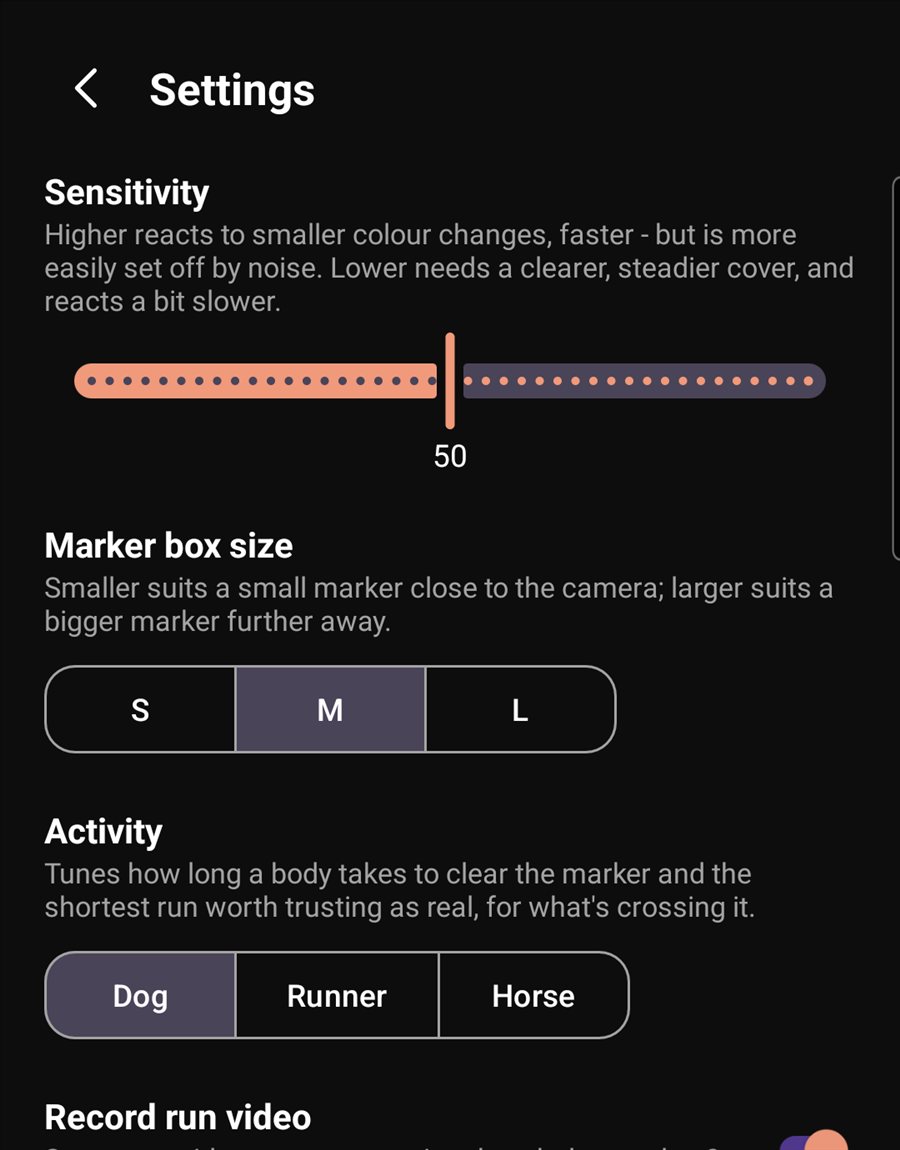
Adjust sensitivity for the light and marker you're using, box size for how far away it sits, and an activity preset — Dog, Runner or Horse — for what's actually crossing it.
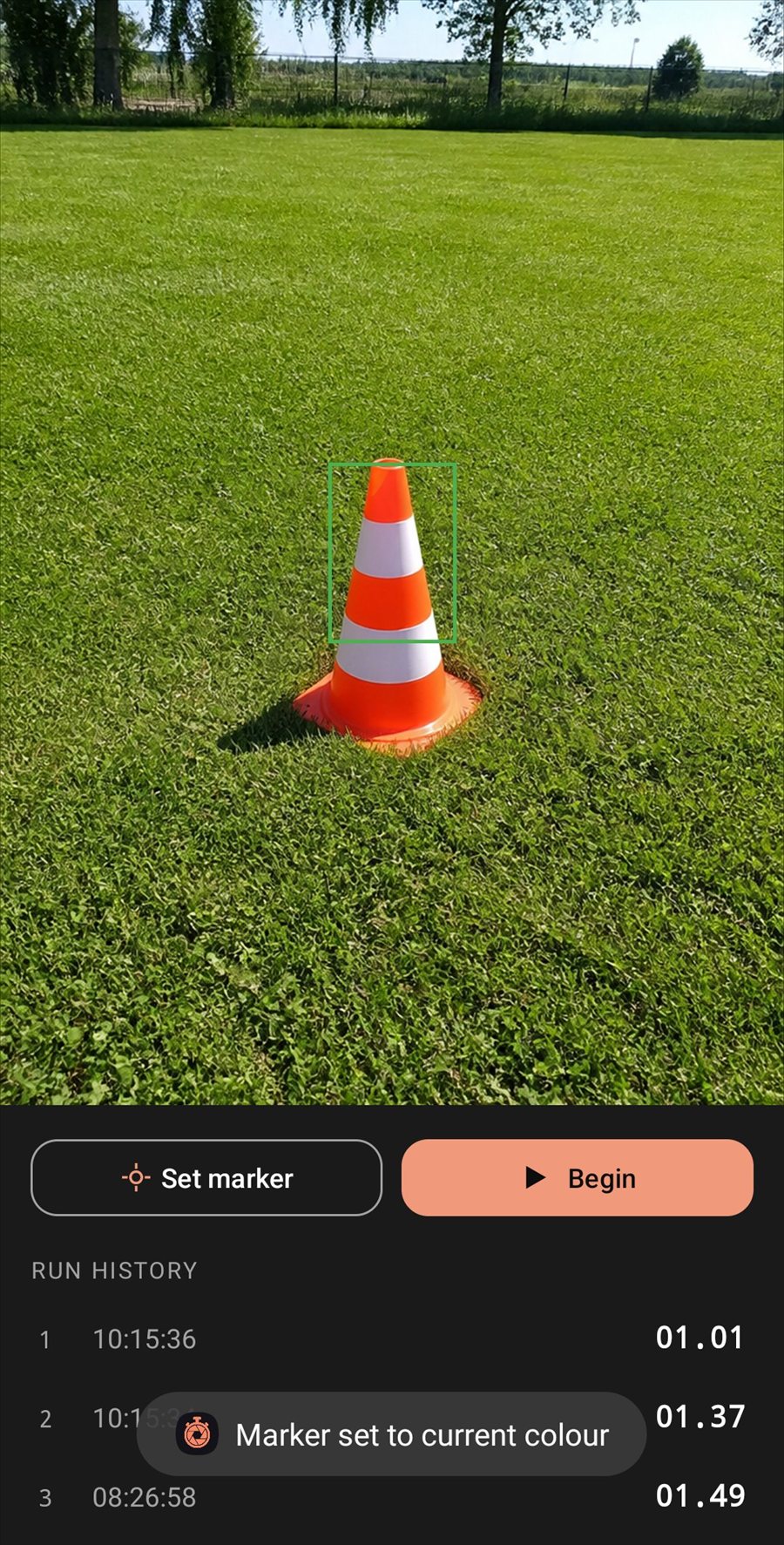
Watches, doesn't guess
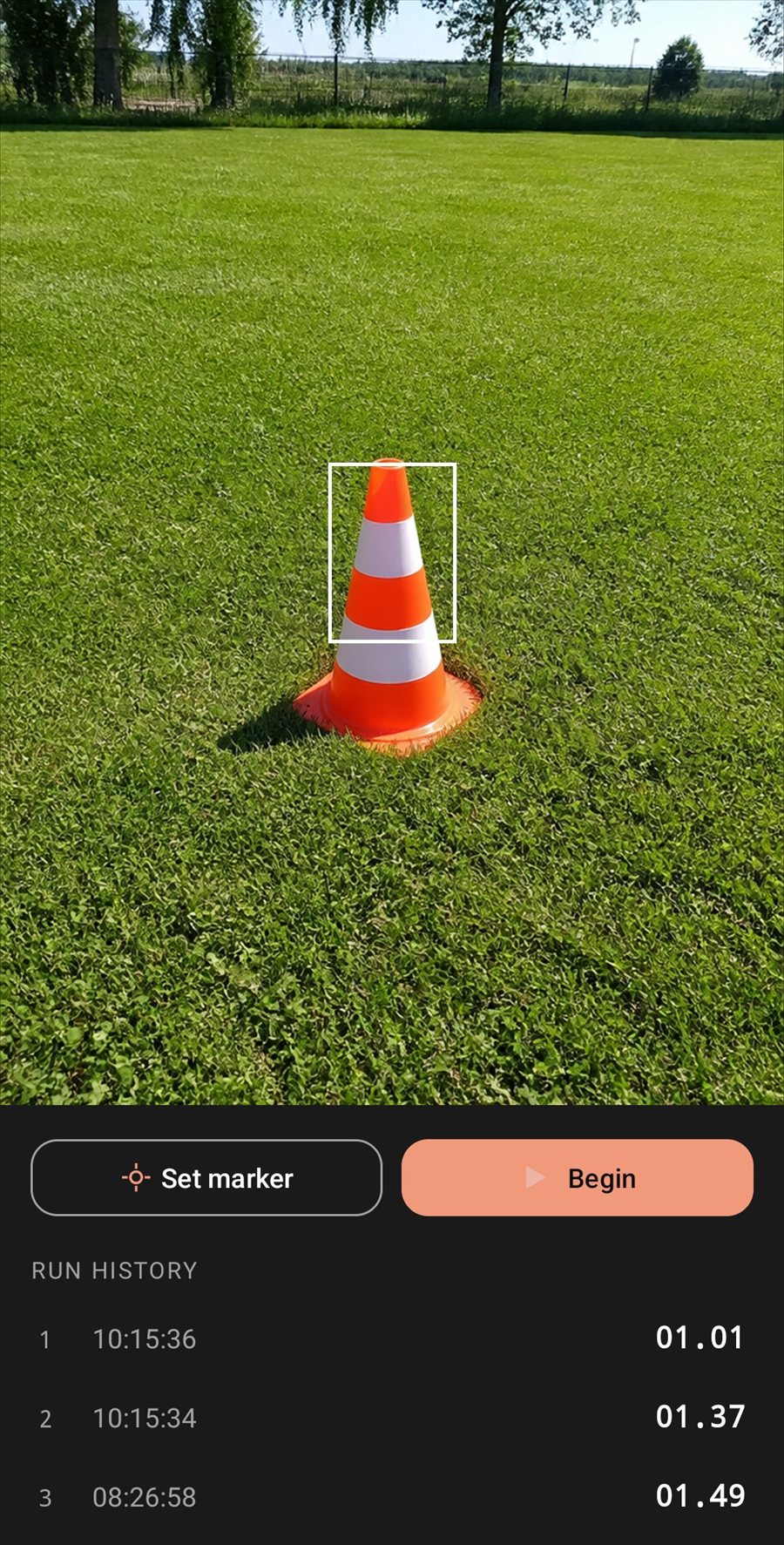
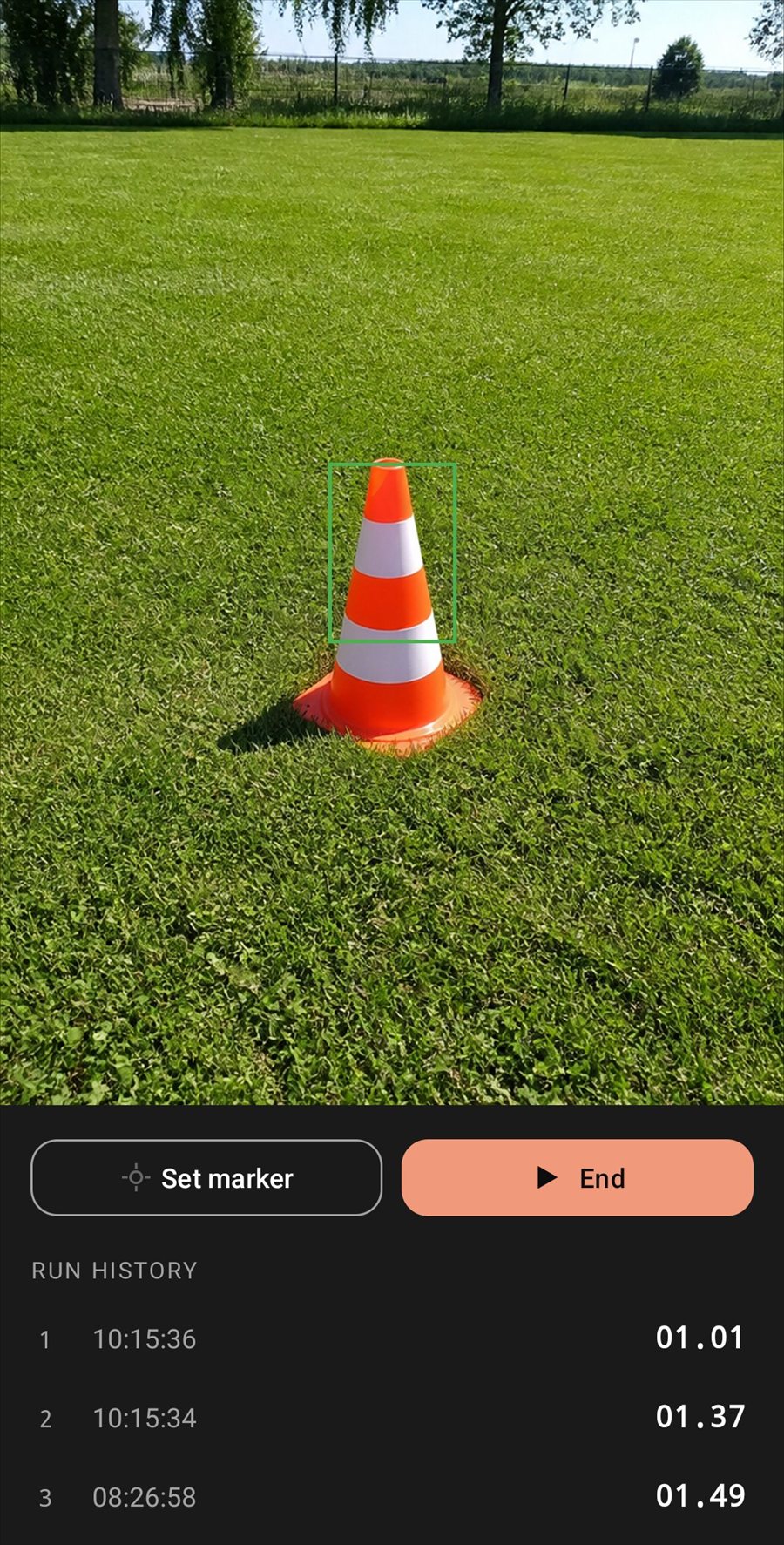
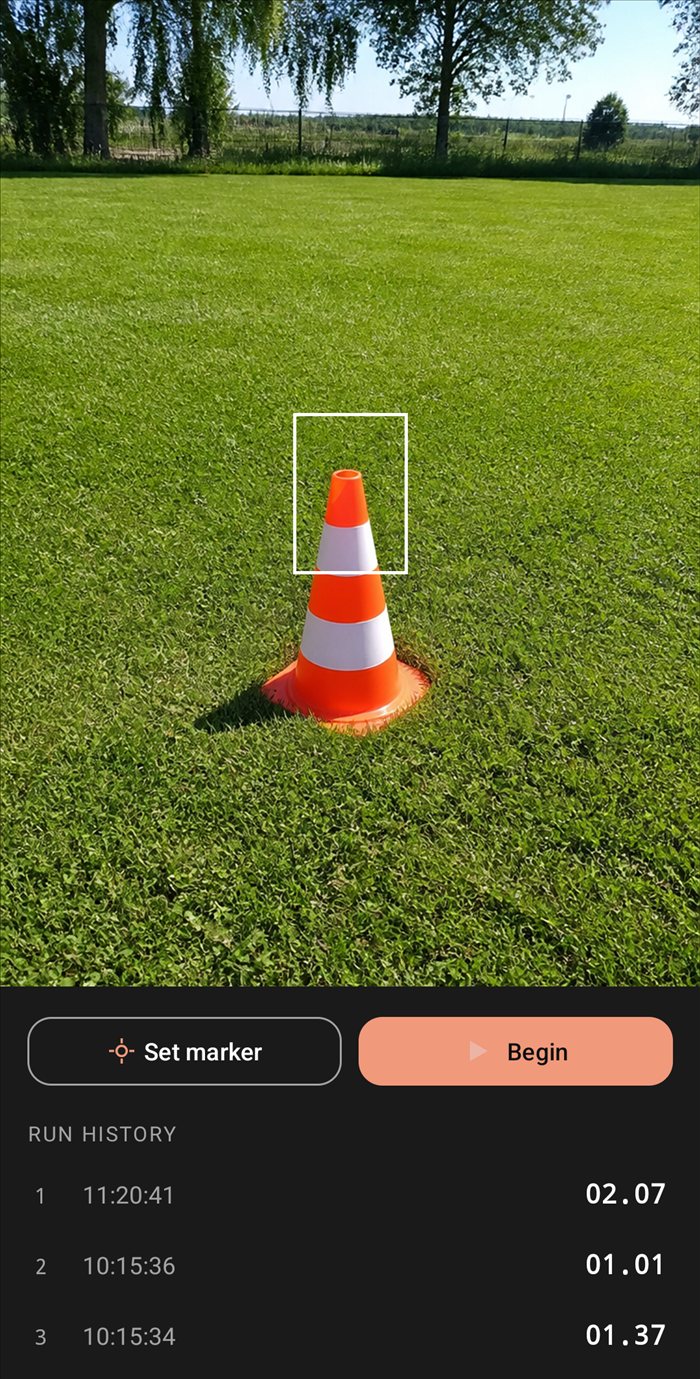
Drag the box over your marker and lock onto its exact colour. It turns green when the marker's visible, red the instant it's covered.
Every run remembered
Tag runs with a name like "Dog Agility" or "400m", and every time is saved automatically — export the whole history to CSV whenever you like.
Know the result without looking
Have SplitEye speak the time out loud, beep and vibrate, or send a phone notification the moment a run finishes — it'll show up on a paired smartwatch too.
Genuinely private
No accounts, no analytics, no ads. SplitEye doesn't even request internet access — there's nothing for it to send your data to. Read the privacy policy.
How it works
Five steps, no manual required
The same walkthrough built into the app, start to finish.
STEP 1
Set up a marker
Place something small and a single bright colour — a bit of coloured card works well — at the spot where you want the clock to start and stop. A colour that stands out from the background works best.
STEP 2
Line up the box
Open SplitEye and point your camera at the marker. Drag the box on screen until it sits over the marker — it can go anywhere in frame, it doesn't need to be centred.
STEP 3
Tap Set marker
This records the marker's colour and holds the camera's white balance and focus steady, so the reading doesn't drift. The box turns green when the marker is visible and red the moment it's covered — check that it responds before you carry on.
STEP 4
Tap Begin
SplitEye is now watching the marker. The first time it's covered, the clock starts; the next time, it stops — or, with Lap mode on, that crossing ends the lap and starts the next one straight away.
STEP 5
Check your result
Every run is saved to your history automatically. In Settings you can also have SplitEye speak the time out loud, beep and vibrate, send a phone notification, or save a video of the run with the timer burned in (video is still in beta, so it's off until you turn it on).
Screenshots
See it in your hand
Real screens from the app — no mockups.
Home
Timing a run
Settings
Free & Pro
Try it free. Go Pro when you're timing every day.
The free version is the full app. Pro removes the limit on how many runs you can time.
Free
£0
No account, no card
- Every feature in the app
- 5 timed runs, then a 3-minute wait before the next 5
- Run history and CSV export
SplitEye Pro
£17.99 / year
Auto-renews yearly · cancel any time
- Unlimited runs, no waiting
- A Pro badge on the home screen
- A Pro app icon on your phone
- Supports ongoing development
Price shown is for the UK and includes tax; Google Play shows the price in your own currency before you subscribe. Manage or cancel any time in the Play Store under Subscriptions.
Available now
Get SplitEye on Google Play
Free to download. Set up a marker, point your camera and time your first run in a couple of minutes.
Get it on Google PlayAndroid only for now.
On the roadmap
- Link two phones, so one marks the start and the other the finish
- An iPhone version
No dates yet. Got an idea? Use Send feedback in the app's Settings.